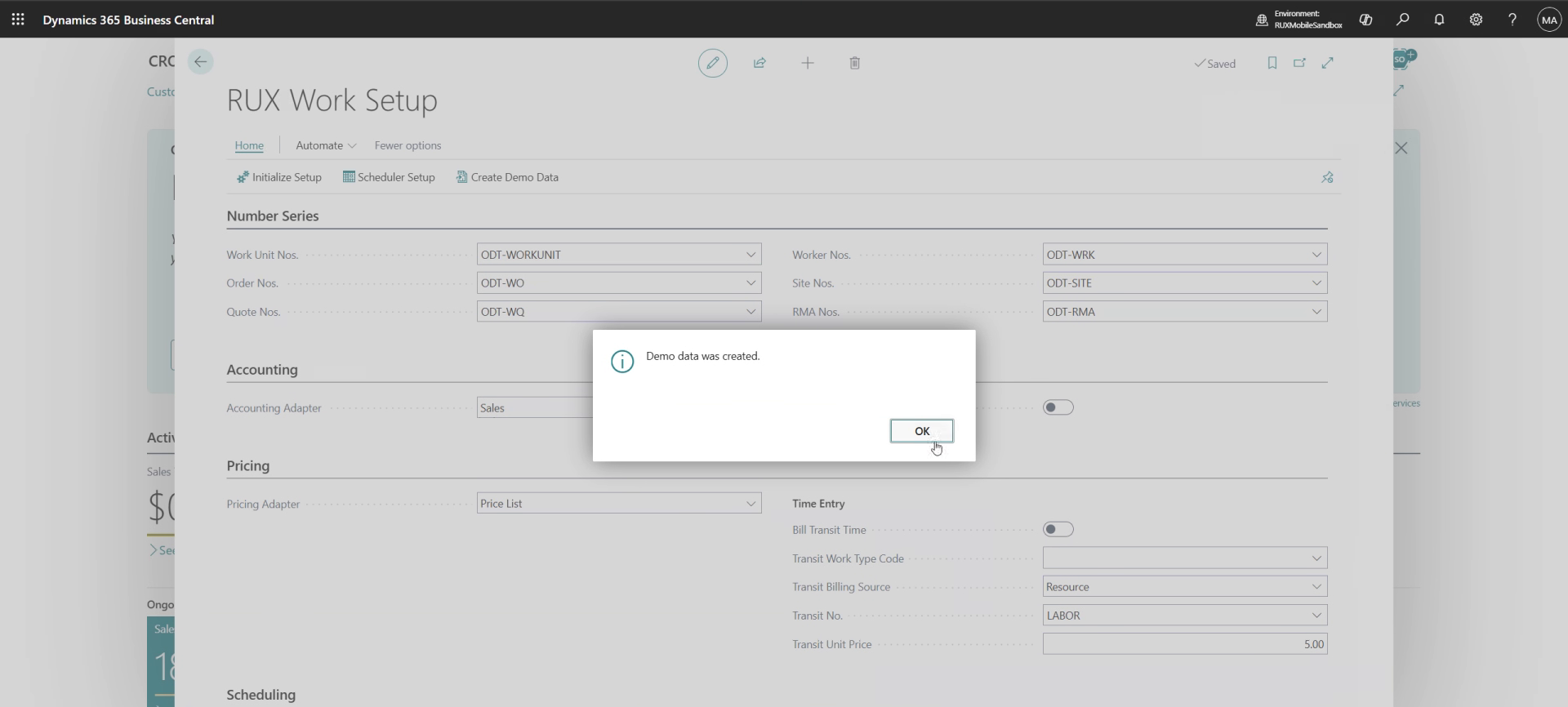
Create demo data
Create Demo Data fills a Business Central company with a complete set of sample RUX Work records in one click. Use it to explore the app, train new users, or run a demo without keying in setup and master data by hand.
What it creates
- Customers and sites
- Work unit types and work units, including meters with sample meter readings
- Worker types, workers, and resources
- Task types, work orders, and work quotes, with tasks and task lines
- Status codes for open and released work (for example
NEW,READY,INPROGRESS,ONHOLD) - A sample price list
- Maintenance plans, maintenance schedules, and a
DEFAULTjournal batch - Checklists (
SAFETY,STARTUP) with assignment rules that attach them to the demo orders
Create Demo Data also changes setup: it sets the Pricing Adapter on RUX Work Setup to Price List so the sample prices take effect. Run it only in a sandbox or demo company, never in production.
Steps
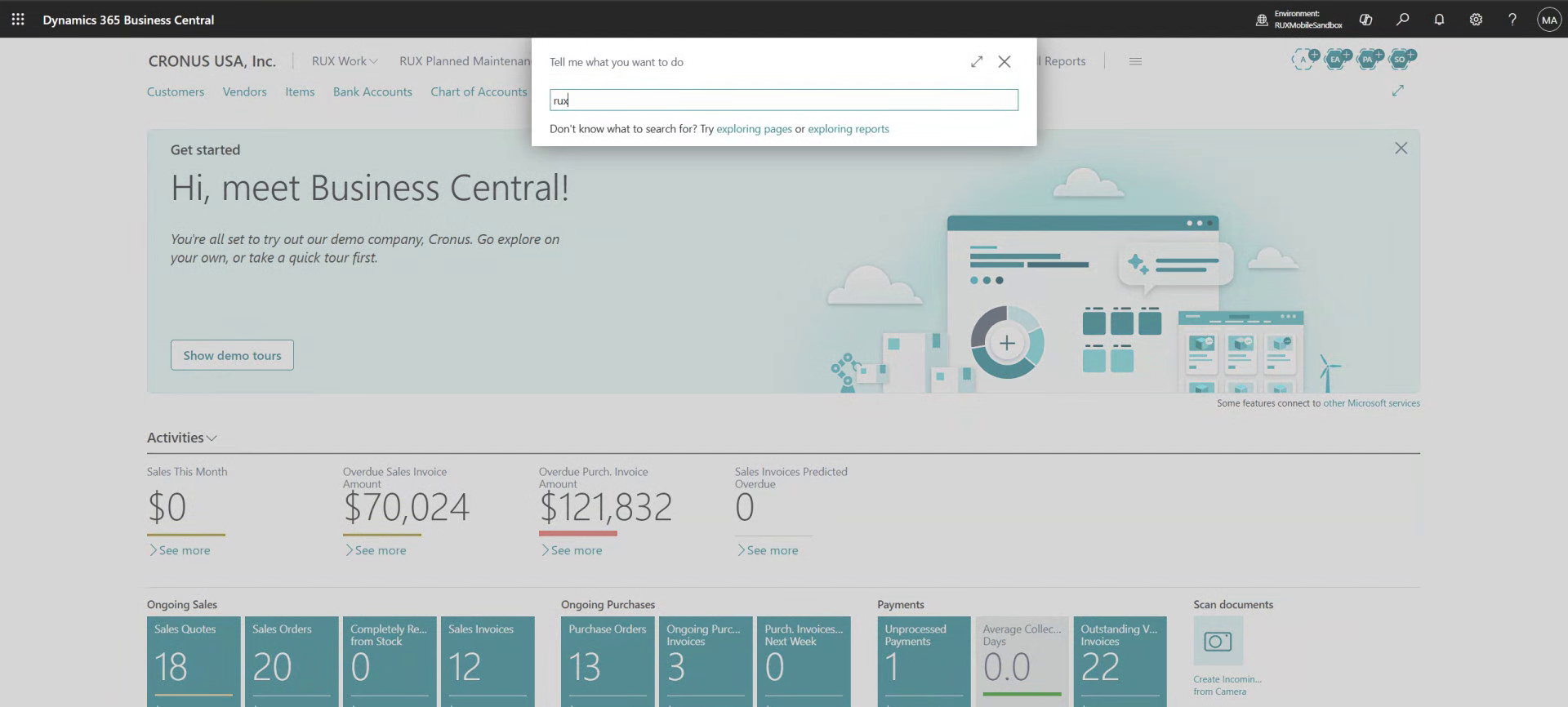
1. Search for RUX Work Setup
In Business Central, select the search icon (Tell me what you want to do) in the top-right corner and type RUX Work Setup.
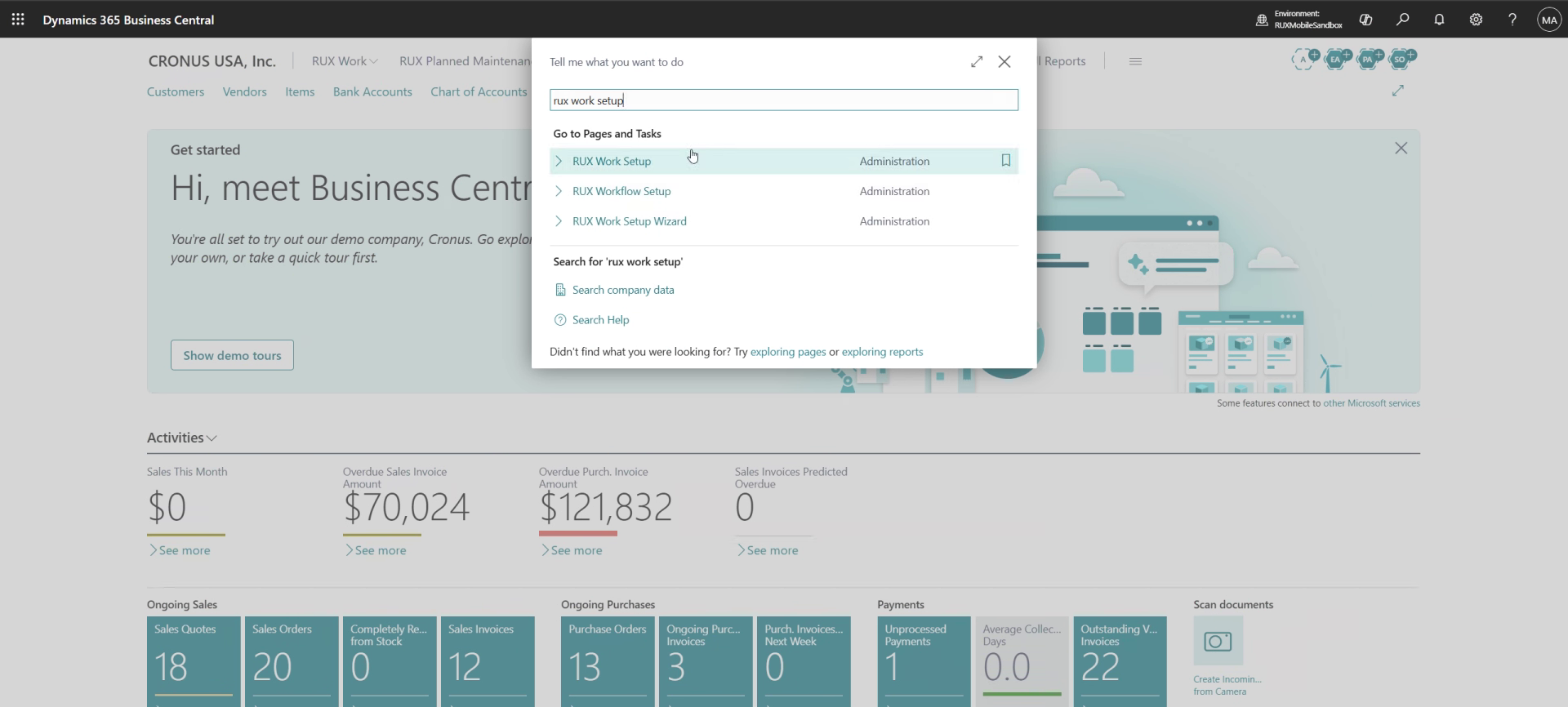
2. Open RUX Work Setup
Under Go to Pages and Tasks, select RUX Work Setup (Administration).
3. Find Create Demo Data
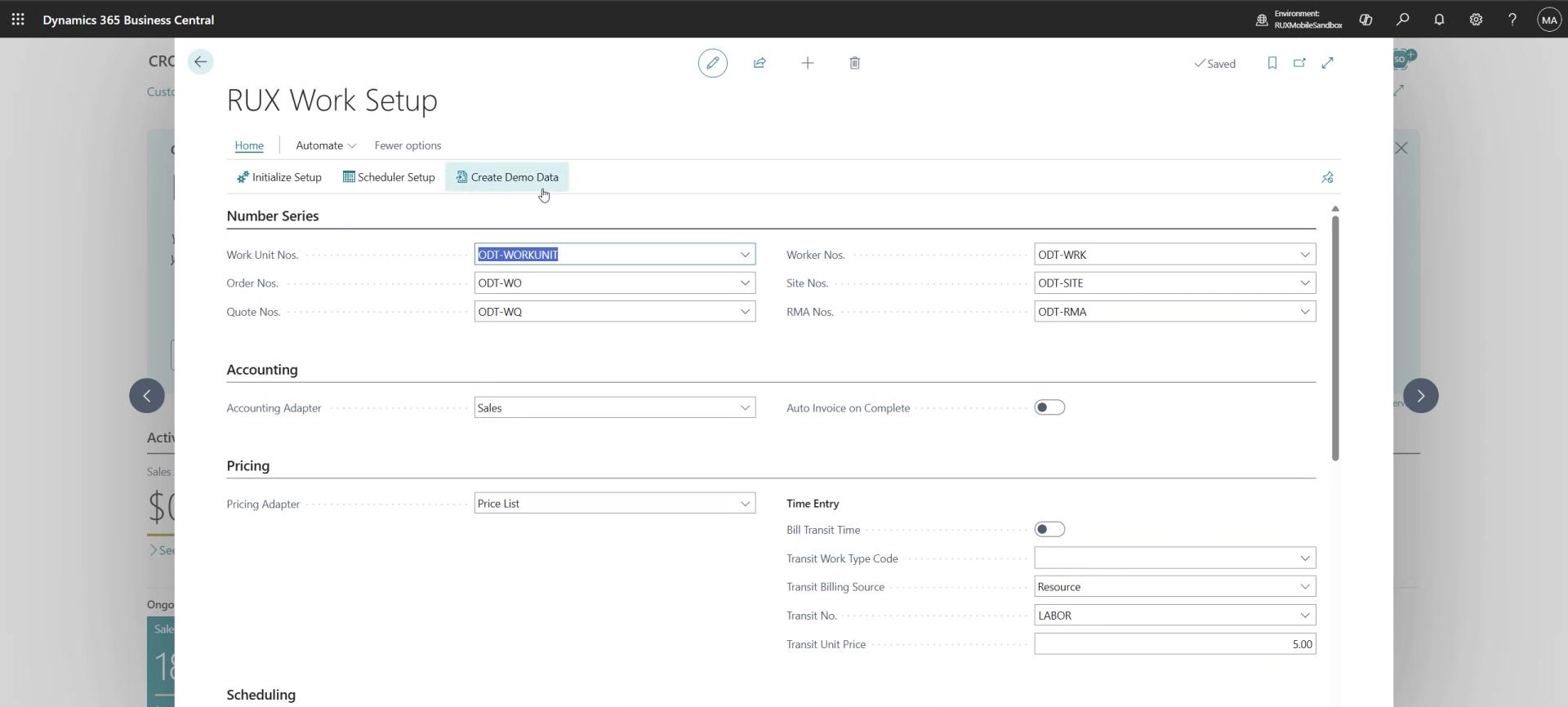
The RUX Work Setup page opens. Create Demo Data is on the Home ribbon, next to Initialize Setup and Scheduler Setup.
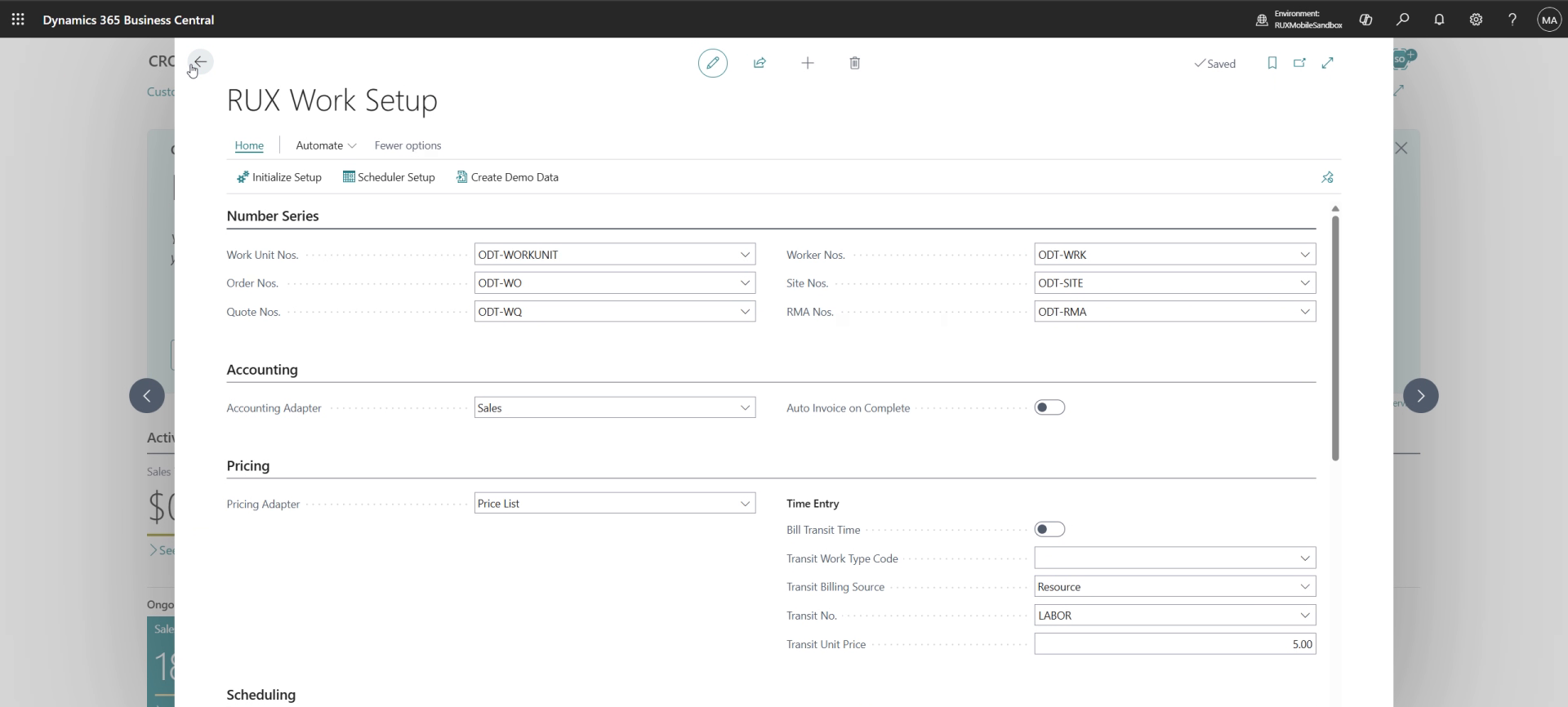
4. Select Create Demo Data
5. Confirm
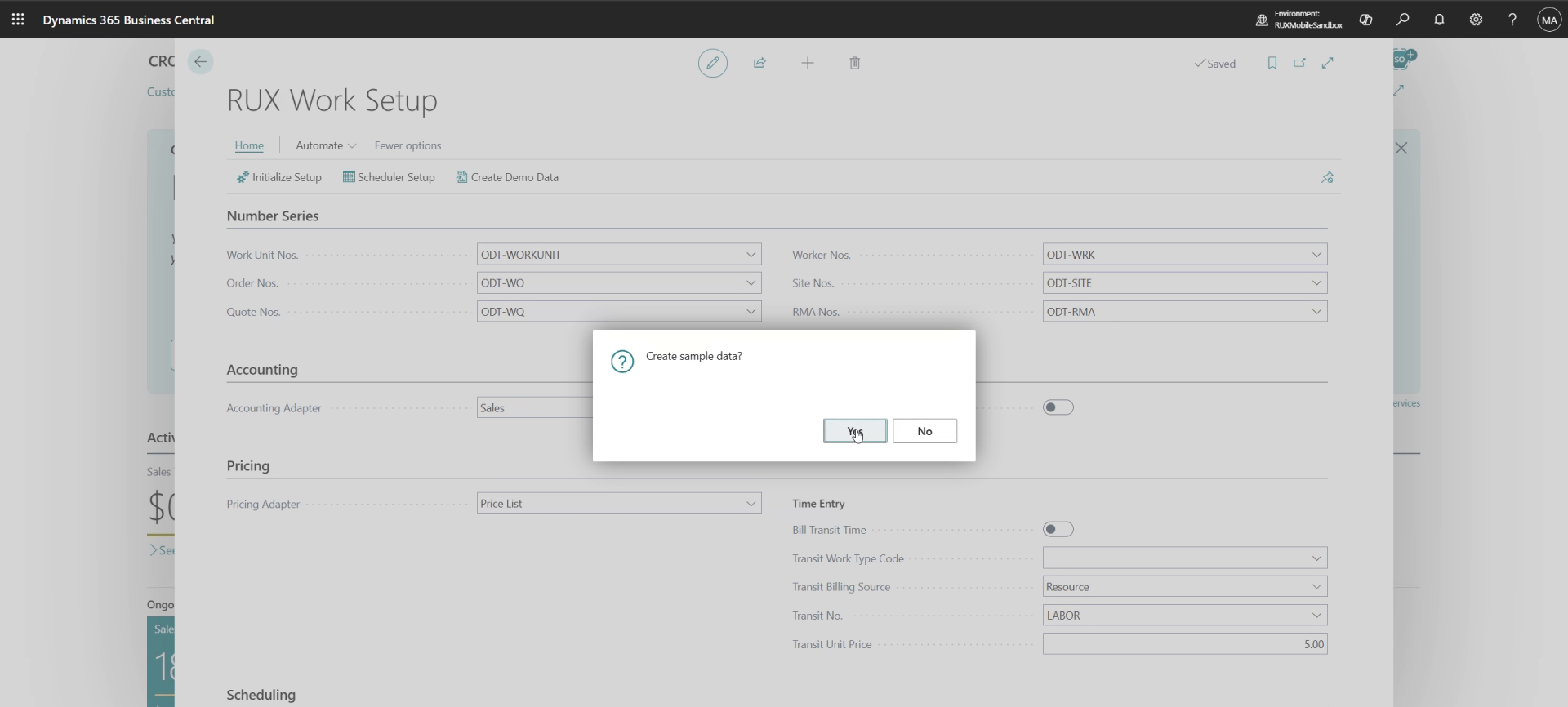
When prompted Create sample data?, select Yes.
6. Wait for it to finish
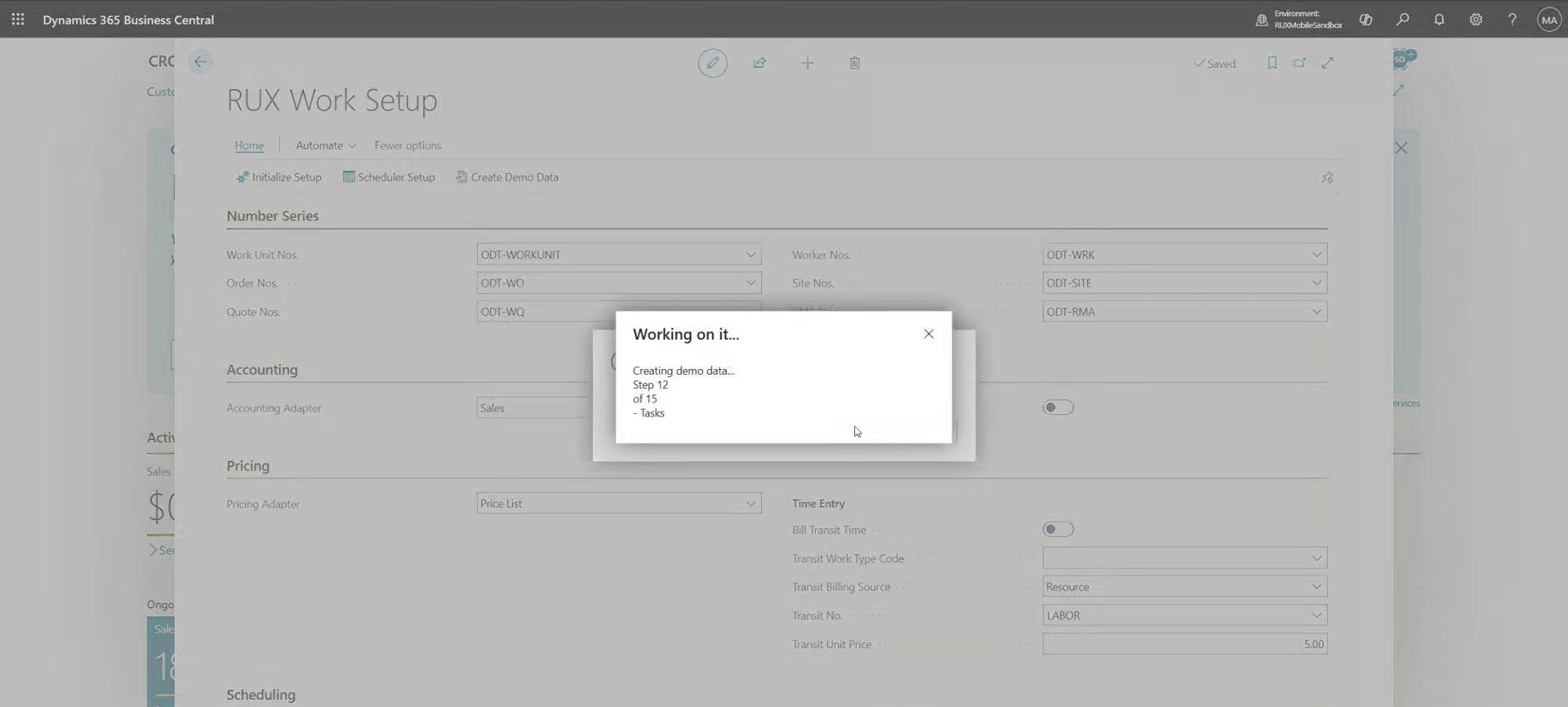
A Working on it... dialog shows progress through 15 steps.
7. Done
When you see Demo data was created., select OK.